How to create custom images and audio
You can use your own images and record your own audio for events in your calendars. These custom images become part of the apps image library so that they are available for use next time you need them.
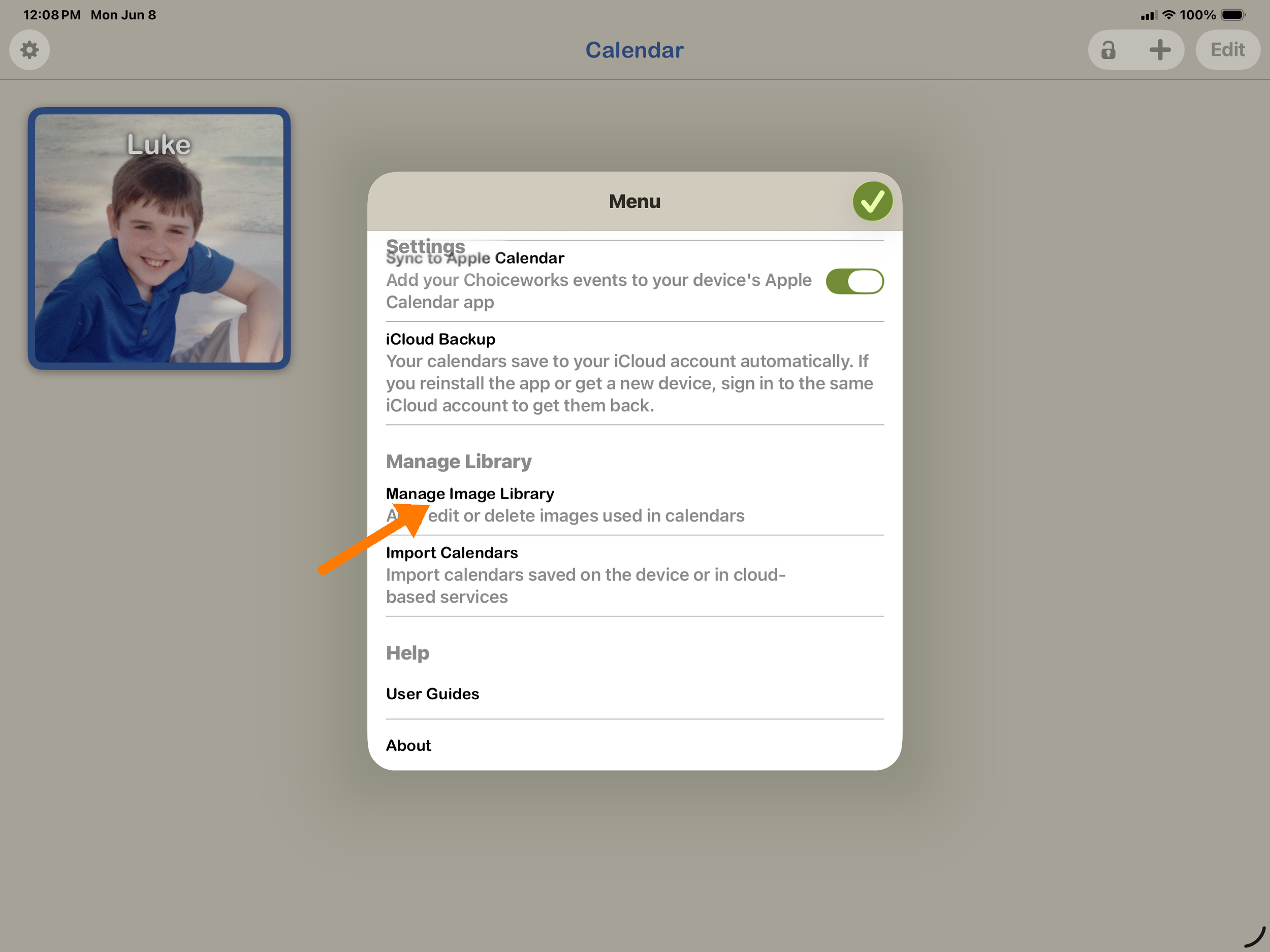
From the main screen: tap the gear in the top-left corner, then tap Manage Image Library.
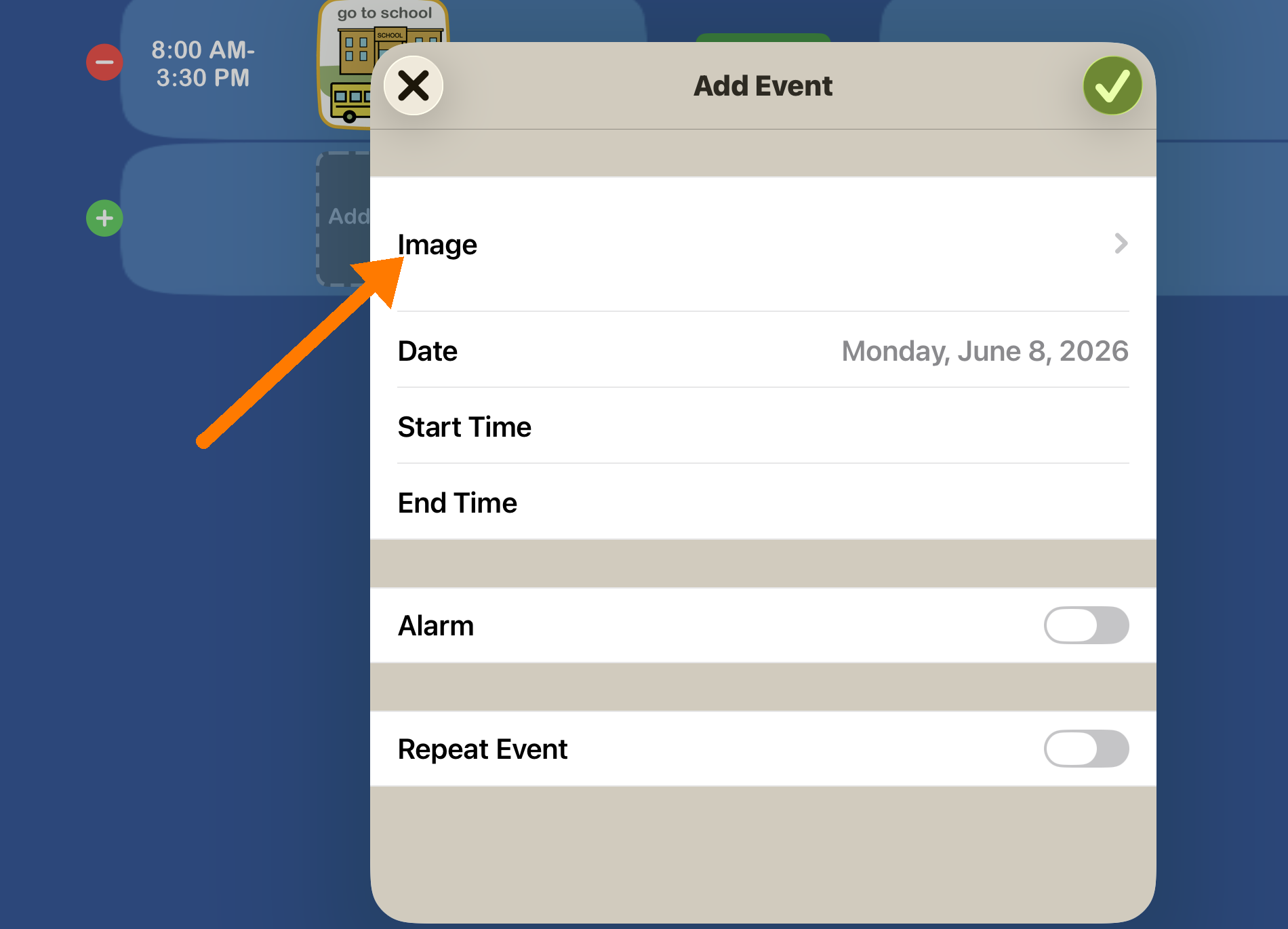
While adding an event: tap a day to bring up Add Event, tap Image, then pick from your library or tap the camera icon.
1. Open the Image Editor - two ways:
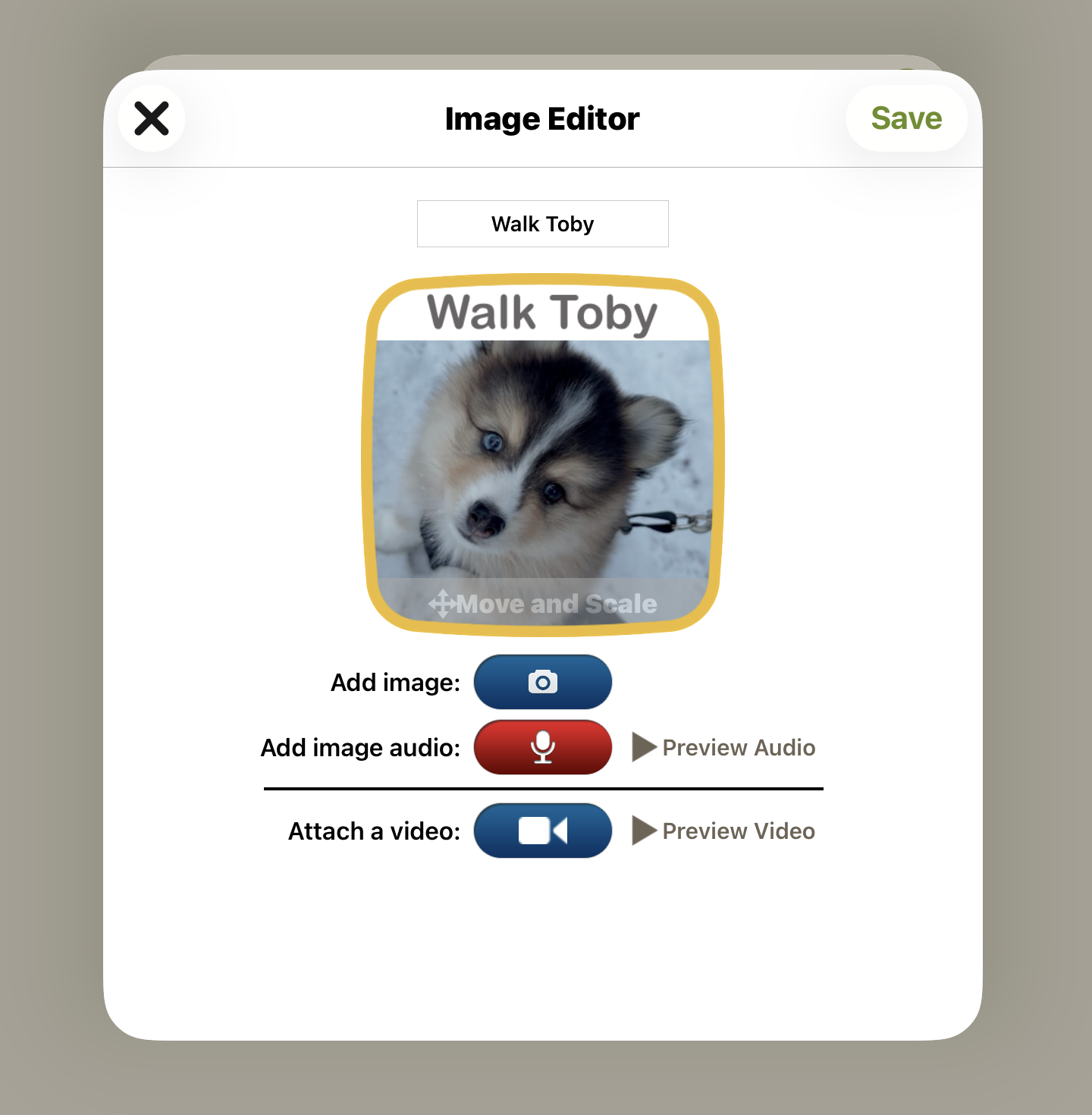
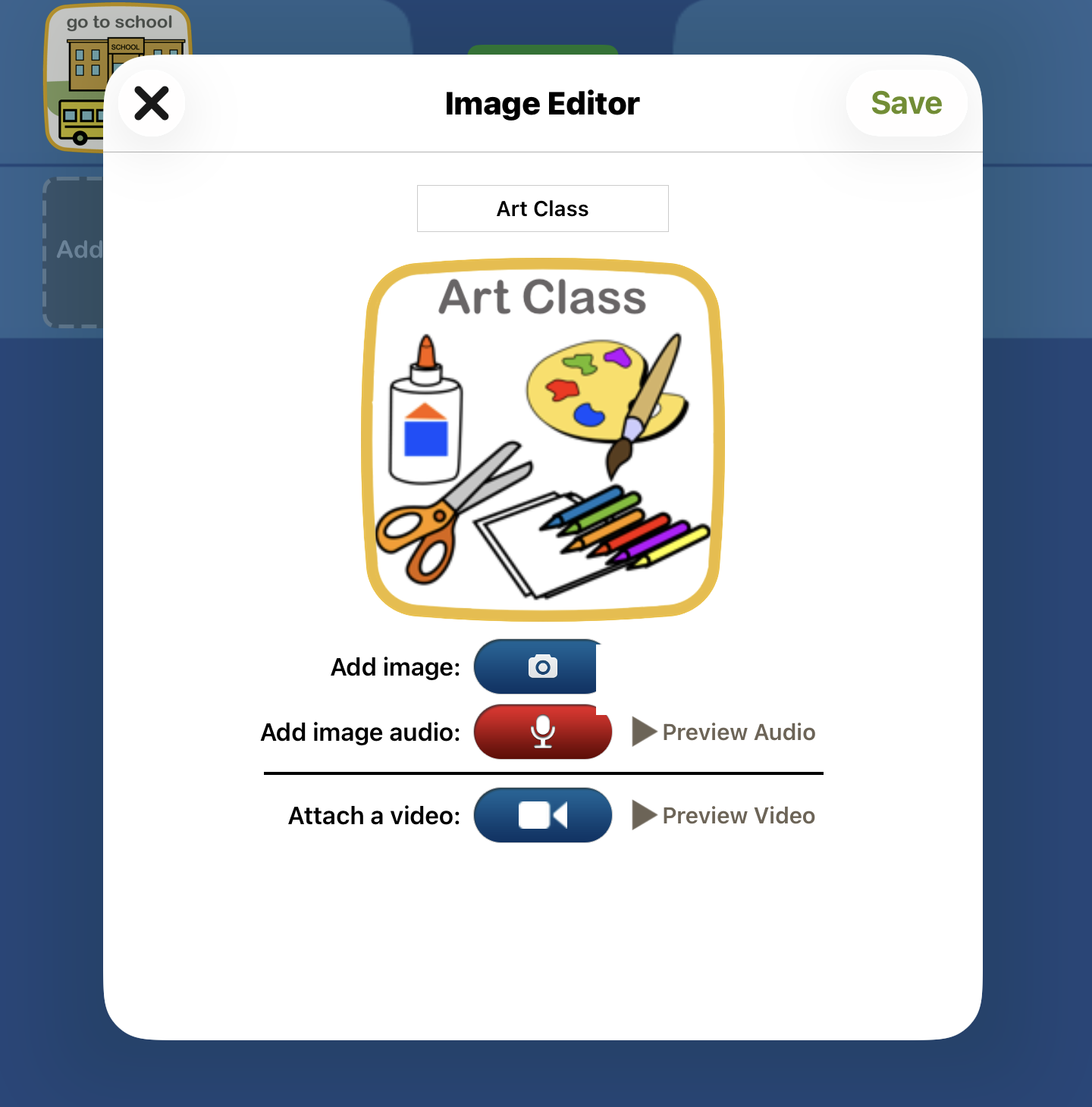
Enter a label at the top. Tap Add image (camera, photo library, or a stock image). Tap the red button to record audio, and the green play to hear it back.
2. Create your image, then Save